
01
Start Here
What Arihna Biha does, how prayer blocks move from setup to delivery, and what calendar providers can limit.
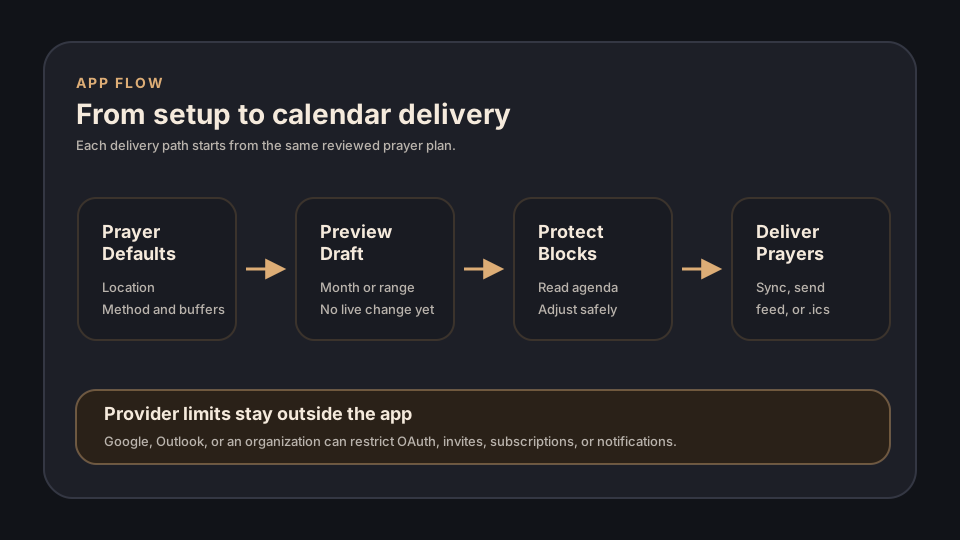
Arihna Biha turns your Prayer Defaults into Prayer Blocks, shows them as a Preview Draft, then lets you deliver them only after review.
The simple flow
- Set prayer location, method, school, selected prayers, and buffers. This creates the rules used everywhere else.
- Preview the month or selected range in Workspace. Nothing is sent or synced while you are only previewing.
- Protect prayer blocks around visible agenda events when needed. Protection changes the draft, not your live calendar.
- Deliver by direct sync, .ics download, grouped .ics email, or private feed URL after you review the action.
What to expect
You want to test safely
Setup: Set Prayer Defaults, open Workspace, and use preview or .ics download only.
Expected: You can inspect prayer blocks without granting write access or changing Google or Outlook calendars.
Your company blocks permissions
Setup: A Google or Outlook connection fails, invites do not land automatically, or subscriptions are blocked.
Expected: Arihna Biha shows what it can retry, but your provider or workplace administrator controls those restrictions.
Calendar provider limits
Google, Outlook, or a workplace administrator can block OAuth permission, external invites, calendar subscriptions, notifications, or automatic invite placement. Arihna Biha can explain and retry, but it cannot override those provider rules.
02
Connect Calendars
Understand Calendar Connections, Agenda Sources, Sync Targets, and account limits.
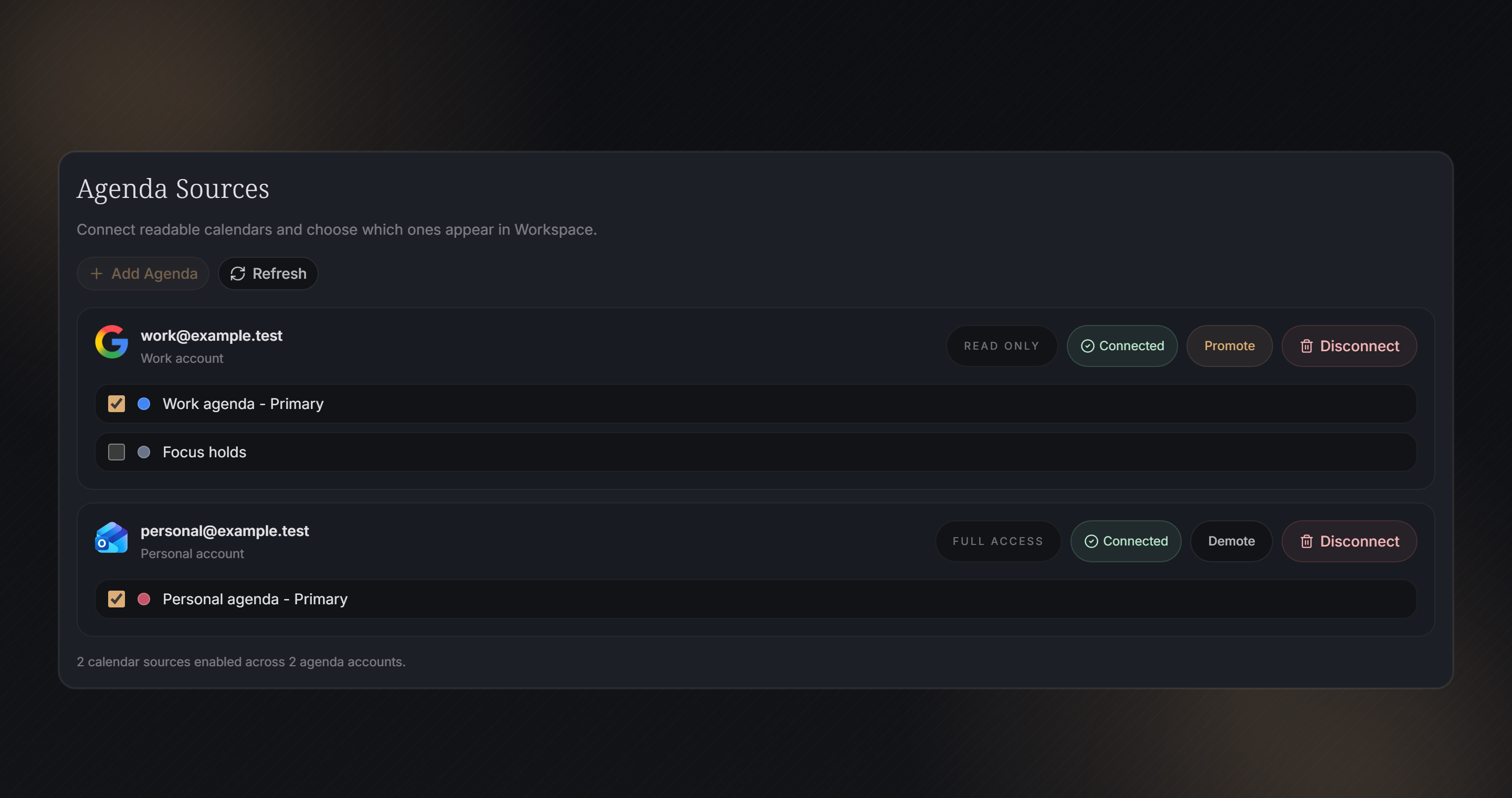
- Calendar Connection
- A connected Google or Outlook account.
- Agenda Source
- A calendar Arihna Biha can read for preview and conflict context.
- Sync Target
- A writable calendar Arihna Biha can use for direct sync.
- Read-only access lets the app see busy events, but not create or edit them.
- Read-write access lets the app manage Arihna Biha-owned Prayer Blocks.
- Community access uses one active agenda account after setup.
- Supporter access unlocks full sync and higher limits.
- Switching Agenda Sources changes what Workspace reads without deleting the provider connection.
- Hidden sources stay connected, but Workspace protection ignores them until you show them again.
Connection examples
Use Work as blocker only
Setup: Connect Work calendar as an Agenda Source with read-only access.
Expected: Workspace can avoid work meetings, but Sync cannot write Prayer Blocks to that calendar.
Write prayers to a managed calendar
Setup: Select a writable calendar as a Sync Target.
Expected: Sync creates and updates Arihna Biha-owned Prayer Blocks on that target only.
Switch from Work to Personal agenda
Setup: Hide Work and show Personal in Agenda Sources.
Expected: Workspace protection now uses Personal events as blockers without disconnecting Work.
03
Protect Prayer Blocks
Let Arihna Biha adjust prayer blocks around visible blocker events when possible.
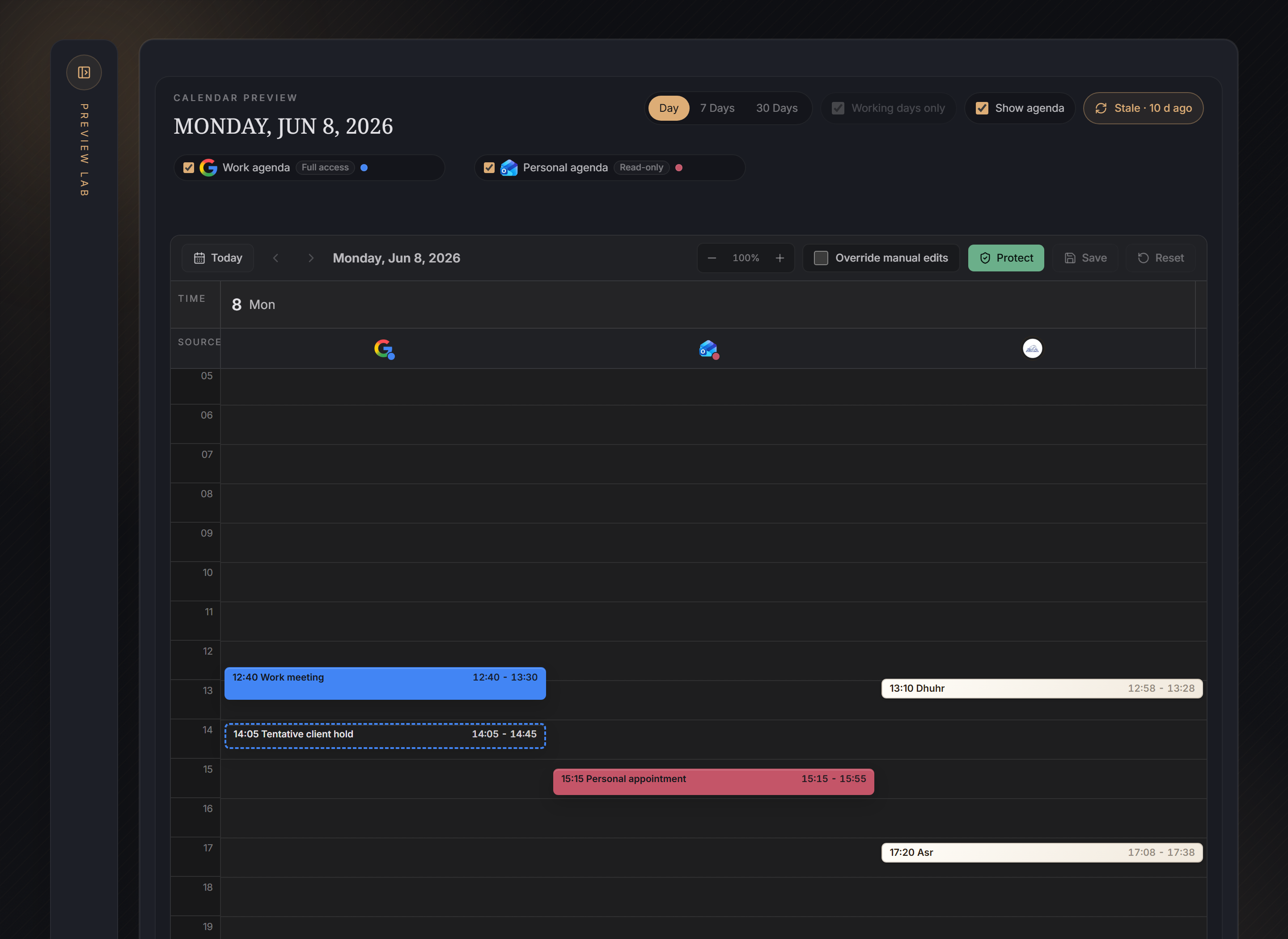
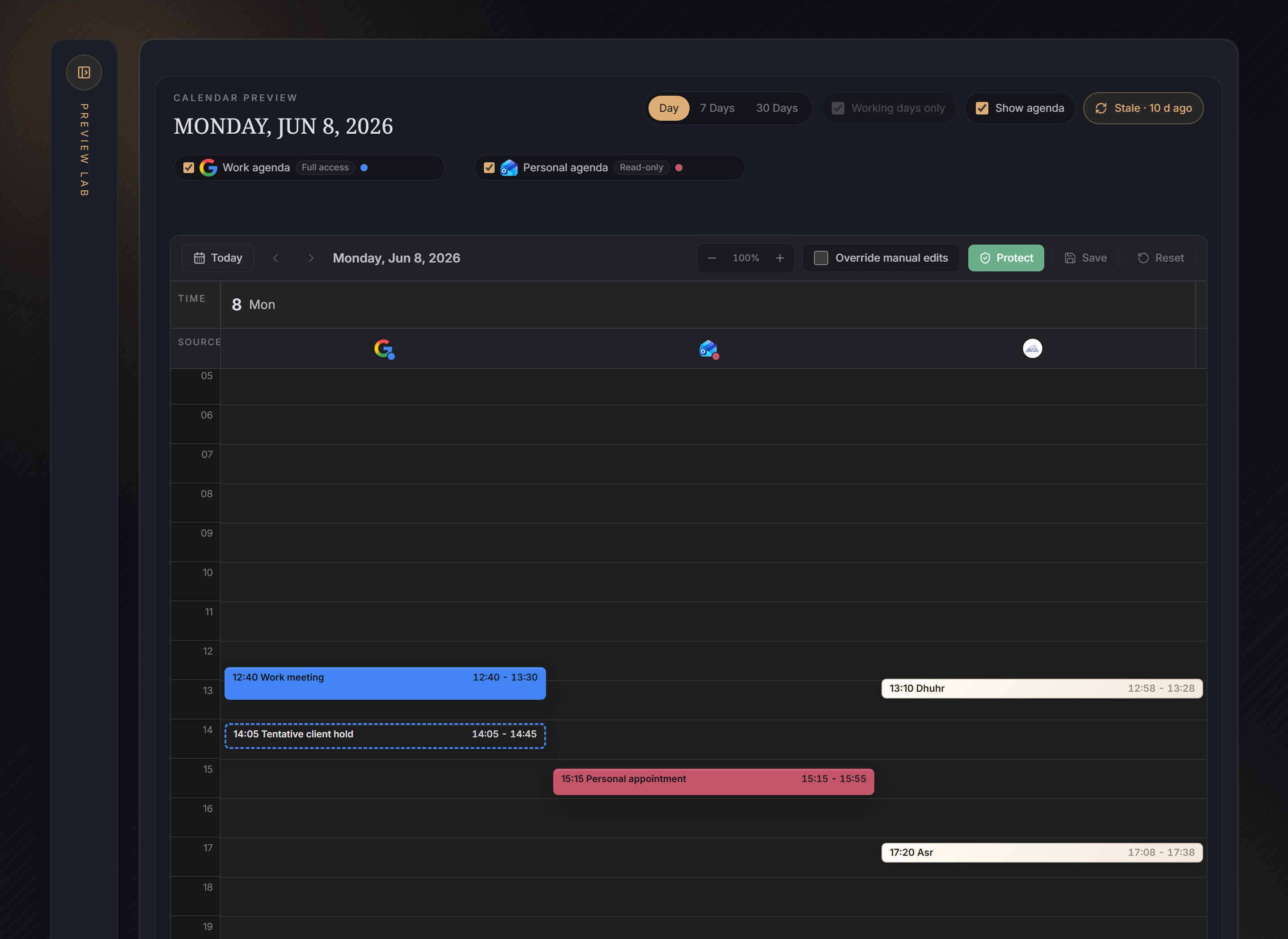
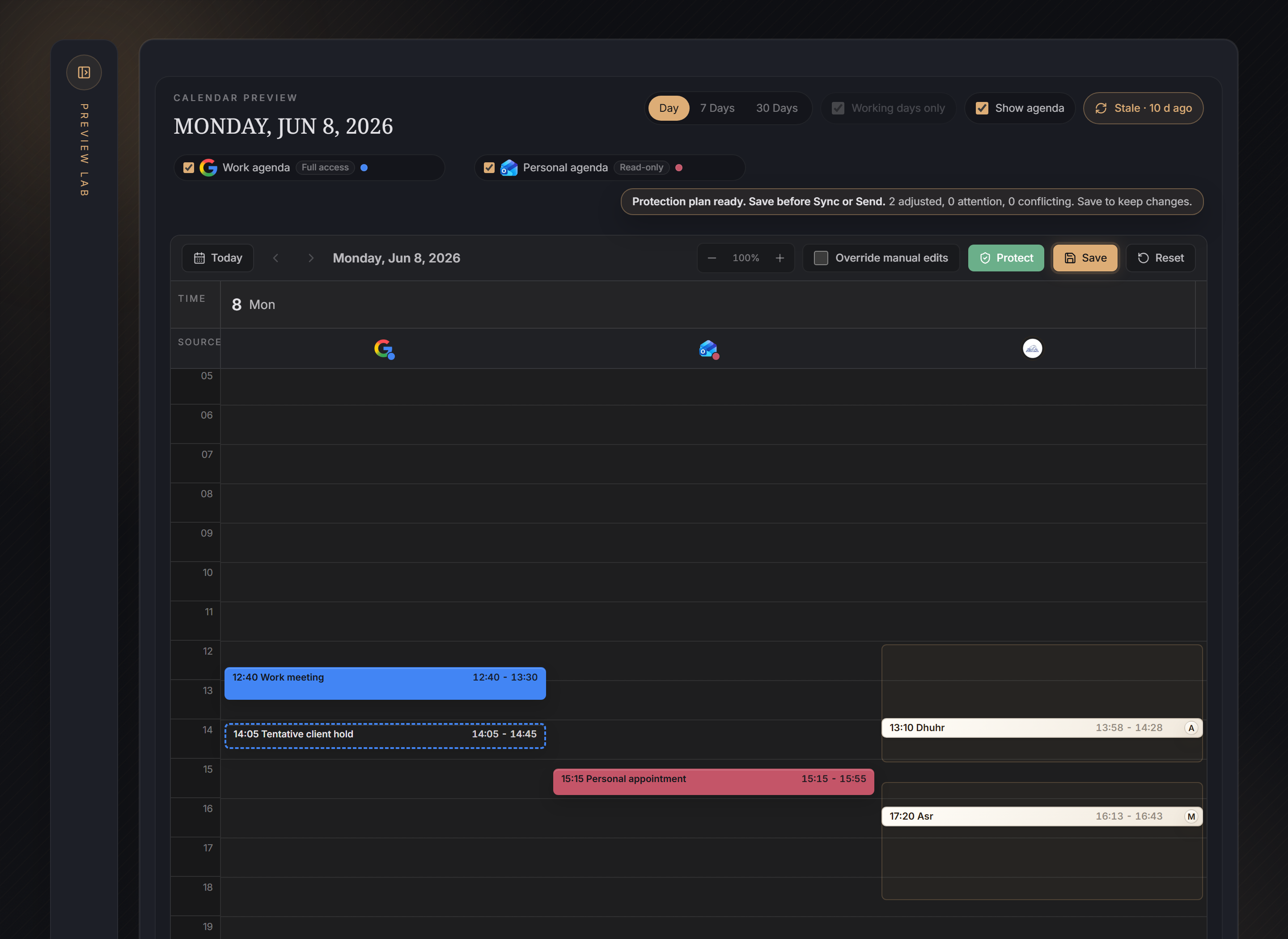
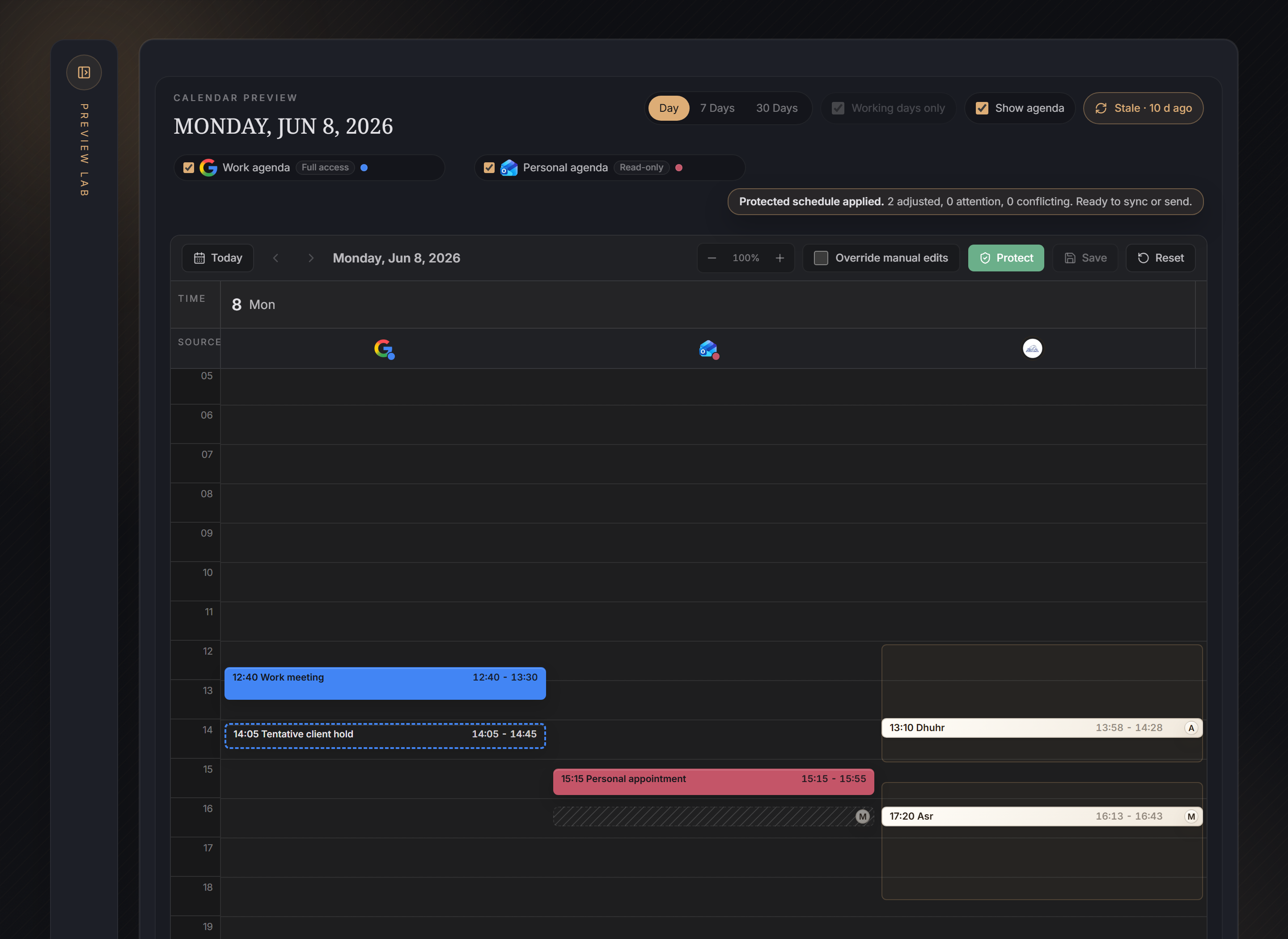
Protection compares Prayer Blocks with visible Agenda Sources, then searches for a cleaner slot inside each prayer's valid time range. The screenshots use Workspace Day view so the before-and-after behavior is easy to see.
How the protection run works
- Before protection, Workspace may show overlaps in the Preview Draft.
- Click Protect in the calendar toolbar. Arihna Biha checks the agenda sources currently visible in Workspace.
- A proposed protected draft appears first. Review the adjusted times and the valid prayer window bands.
- A prayer is treated as past only when its valid prayer window has ended, not when the reserved before/after buffer has ended.
- Examples: Fajr ends at sunrise, Dhuhr at Asr, Asr at Maghrib, Maghrib at Isha, and Isha at the midpoint between Maghrib and next Fajr.
- If the current time is already inside a valid window, Arihna Biha protects only the future portion of that Prayer Block.
- Click Save to keep the protected draft before you send, sync, or download it.
- A means the block was automatically adjusted by protection. M means a manual or moved block was preserved.
- Protection explanations show why each protected Prayer Block is default, suggested, manual, conflicting, or unresolved.
- Tentative invites are shown for context as dashed outlines, but protection treats them as not busy and does not move Prayer Blocks around them.
- If no clean slot exists inside the valid range, the conflict remains visible for your review.
Protection examples
Dhuhr overlaps a meeting
Setup: Work agenda is visible, Dhuhr overlaps a Work meeting, then you click Protect.
Expected: If another clean time exists inside Dhuhr's valid range, the proposed draft moves Dhuhr there and shows an A badge.
You manually placed Asr
Setup: A previous app-side manual move is preserved.
Expected: Protection keeps that placement when possible and marks it with M so you know it was not recalculated.
A protected block still conflicts
Setup: The protected explanation says Conflicting or Unresolved.
Expected: Review the legal window, visible blocker labels, and recommended action before choosing Sync or Send.
No clean slot exists
Setup: The full valid prayer range is blocked by visible agenda events.
Expected: Arihna Biha leaves the conflict visible instead of placing the prayer outside its valid range.
A meeting invite is tentative
Setup: Google or Outlook shows an unanswered invite as tentative.
Expected: Workspace outlines it instead of filling it. The invite stays visible, but it does not delay or move protected Prayer Blocks unless the provider later marks it busy.
Still review before delivery
Protection changes only the draft shown in Workspace. Your live calendar is touched only after you review and choose a delivery action.
04
Manual Edits
Know the difference between manual changes inside Arihna Biha and edits made directly in Google or Outlook.
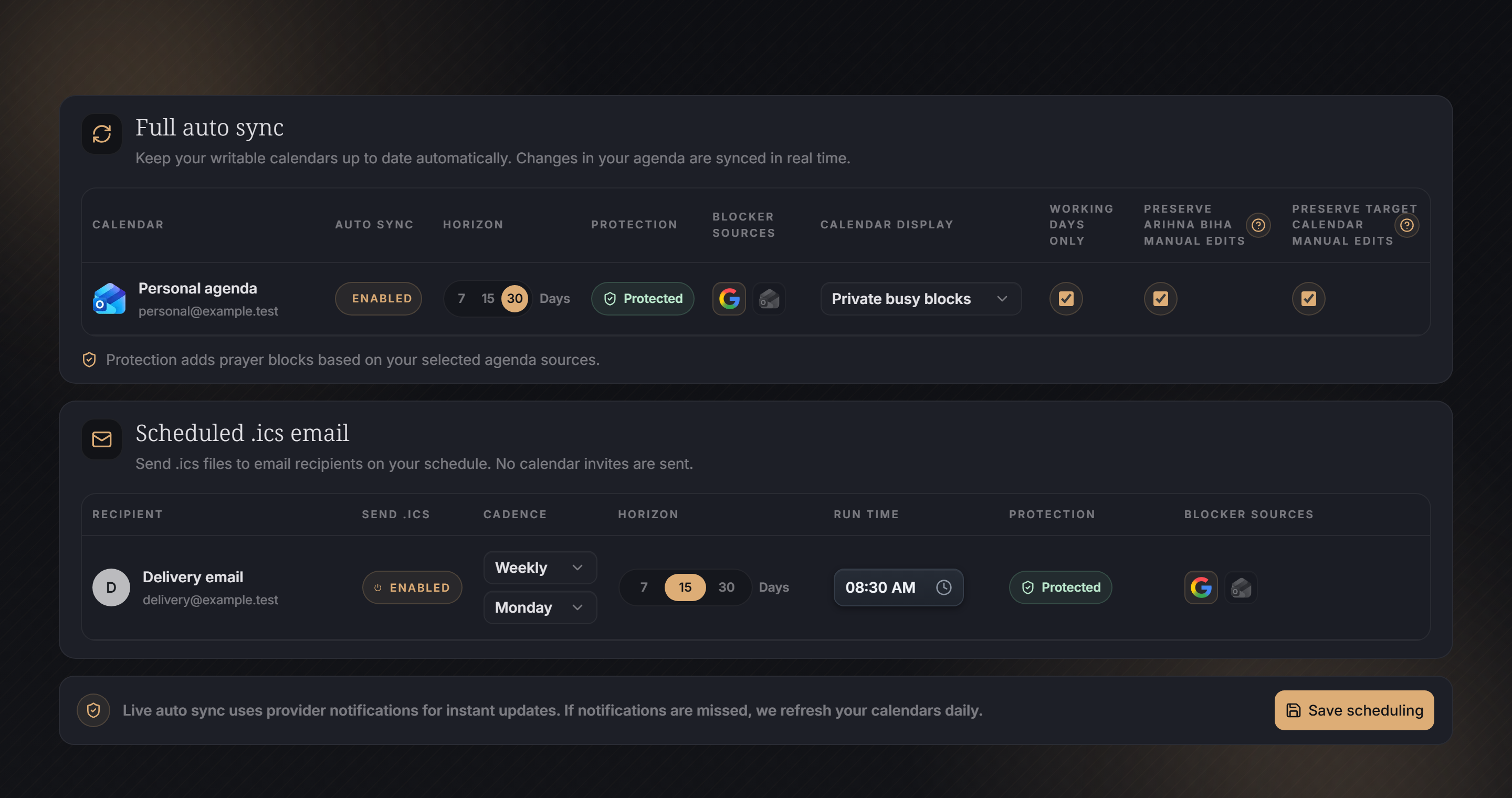
- Arihna Biha manual edits are moves you make inside the Workspace protection editor.
- Target calendar manual edits are moves or deletes made directly in Google or Outlook.
- Preserve keeps those choices during future protection or live sync runs.
- Overwrite lets Arihna Biha recalculate and move or recreate its own Prayer Blocks.
Two different checkboxes
Scheduling keeps app-side and provider-side manual edit policies separate so you can protect one surface without confusing it with the other.
Examples
You moved a block inside Arihna Biha
Setup: Preserve Arihna Biha manual edits is checked.
Expected: Future protection runs keep your moved block when possible and mark it as manual.
You changed a synced block in Google or Outlook
Setup: Preserve target calendar manual edits is checked.
Expected: Future full sync avoids overwriting that provider-side move or delete.
You deleted a synced block in Google or Outlook
Setup: Preserve target calendar manual edits is checked.
Expected: Future full sync keeps that deletion. Turn preserve off or choose overwrite to let Arihna Biha recreate it, as long as the prayer's valid window has not already passed.
05
Scheduling
Use Supporter scheduling for full auto sync or scheduled .ics email.
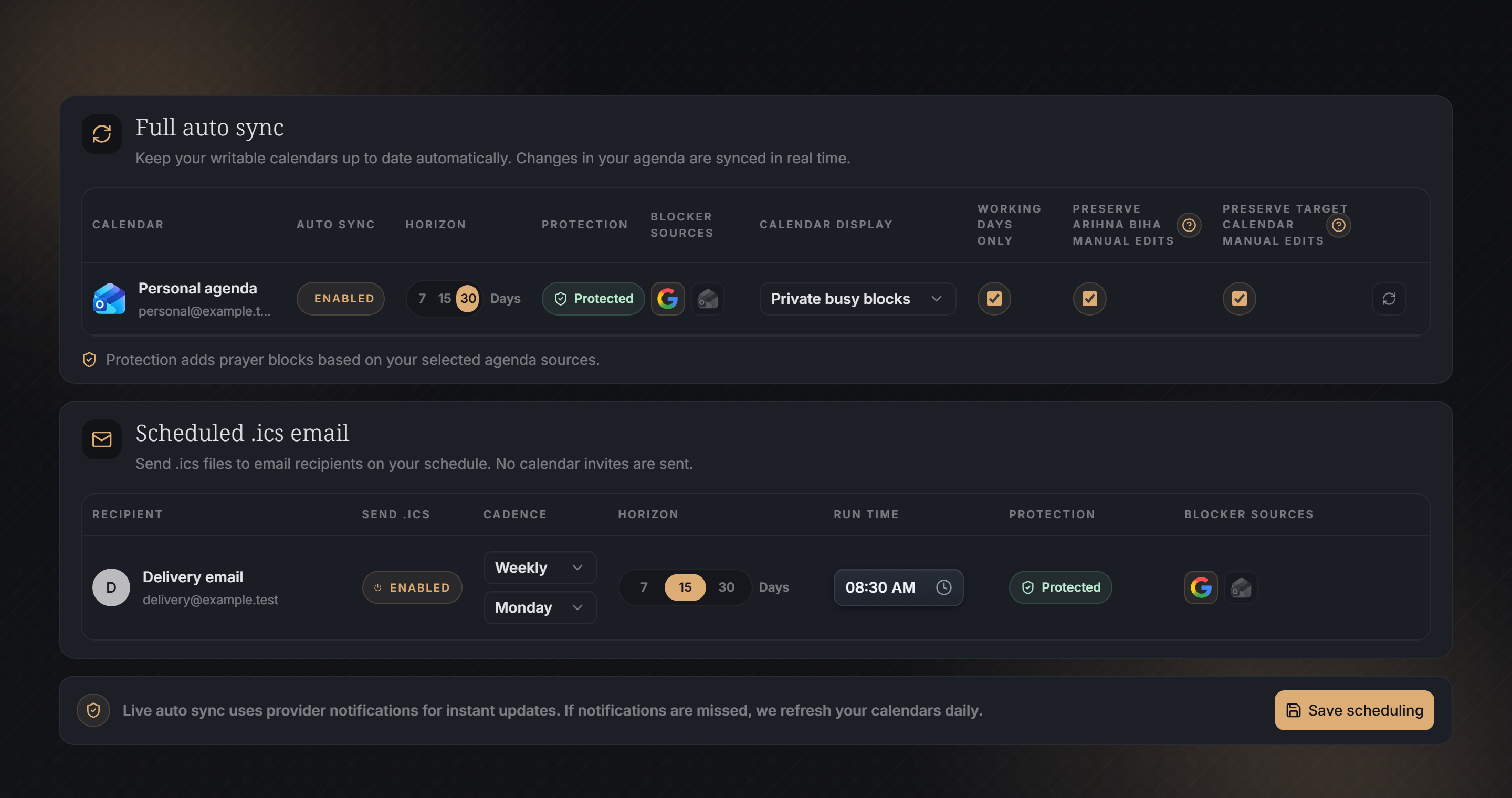
Scheduling saves a repeatable delivery rule. It uses the same prayer defaults, protection choices, range horizon, and display settings every time it runs.
Choose the scheduled path
- Scheduling is a Supporter capability.
- Full auto sync is for writable Sync Targets. It updates the selected calendar directly.
- Saved Prayer Default changes queue saved full auto sync rules so future calendar blocks use the new buffers, prayers, and calculation settings.
- Scheduled .ics email is for email delivery. It sends calendar files on the saved cadence.
- Cadence and run time decide when the scheduled job runs.
- Horizon decides how far ahead the job prepares prayer blocks.
- Protection and blocker sources decide whether prayer blocks are adjusted around visible agenda events.
- The refresh icon at the end of a full auto sync row queues that saved rule immediately.
- While the refresh is queued, the icon highlights. It clears after Arihna Biha sees that the background run finished.
- Reconnect required means a provider needs fresh consent before live updates can continue.
Common scheduling setups
Full auto sync, protected
Setup: Enable Auto Sync, choose a 30-day horizon, turn Protection on, and select Work agenda as a blocker source.
Expected: Arihna Biha keeps the writable target updated and moves future Prayer Blocks around visible Work agenda events when a valid slot exists.
Scheduled .ics email, no write access
Setup: Enable scheduled .ics email, choose Weekly, set a run time, and choose a 15-day horizon.
Expected: The recipient gets a fresh .ics file on schedule. Arihna Biha does not write directly to Google or Outlook.
Refresh full auto sync now
Setup: Click the refresh icon at the end of a saved full auto sync row.
Expected: Arihna Biha marks that rule queued, runs it in the background, then refreshes the page state until the queued highlight clears.
Working days only checked
Setup: Turn on Working days only.
Expected: Scheduled delivery skips Saturday and Sunday prayer blocks for that rule.
Private busy blocks selected
Setup: Choose Private busy blocks as the calendar display mode.
Expected: Synced events appear as Busy on the calendar, while prayer details stay in the event metadata.
Preserve Arihna Biha manual edits checked
Setup: Move a prayer block inside Arihna Biha, then keep this checkbox on.
Expected: The next scheduled protection run keeps that app-side move when possible instead of recalculating it from scratch.
Preserve target calendar manual edits checked
Setup: Move or delete an Arihna Biha-owned event directly in Google or Outlook, then keep this checkbox on.
Expected: The next full sync respects that provider-side edit instead of immediately recreating or moving it back.
What live sync means
When provider notifications arrive, full auto sync can react quickly. If a notification is missed, the scheduled fallback still catches up. The row refresh icon is a manual queue button for the saved rule; it does not mean the run finished at the time shown in the tooltip.